PyQt5 Application for visualizing ambient sound in real-time (codes included)
Loading likes…
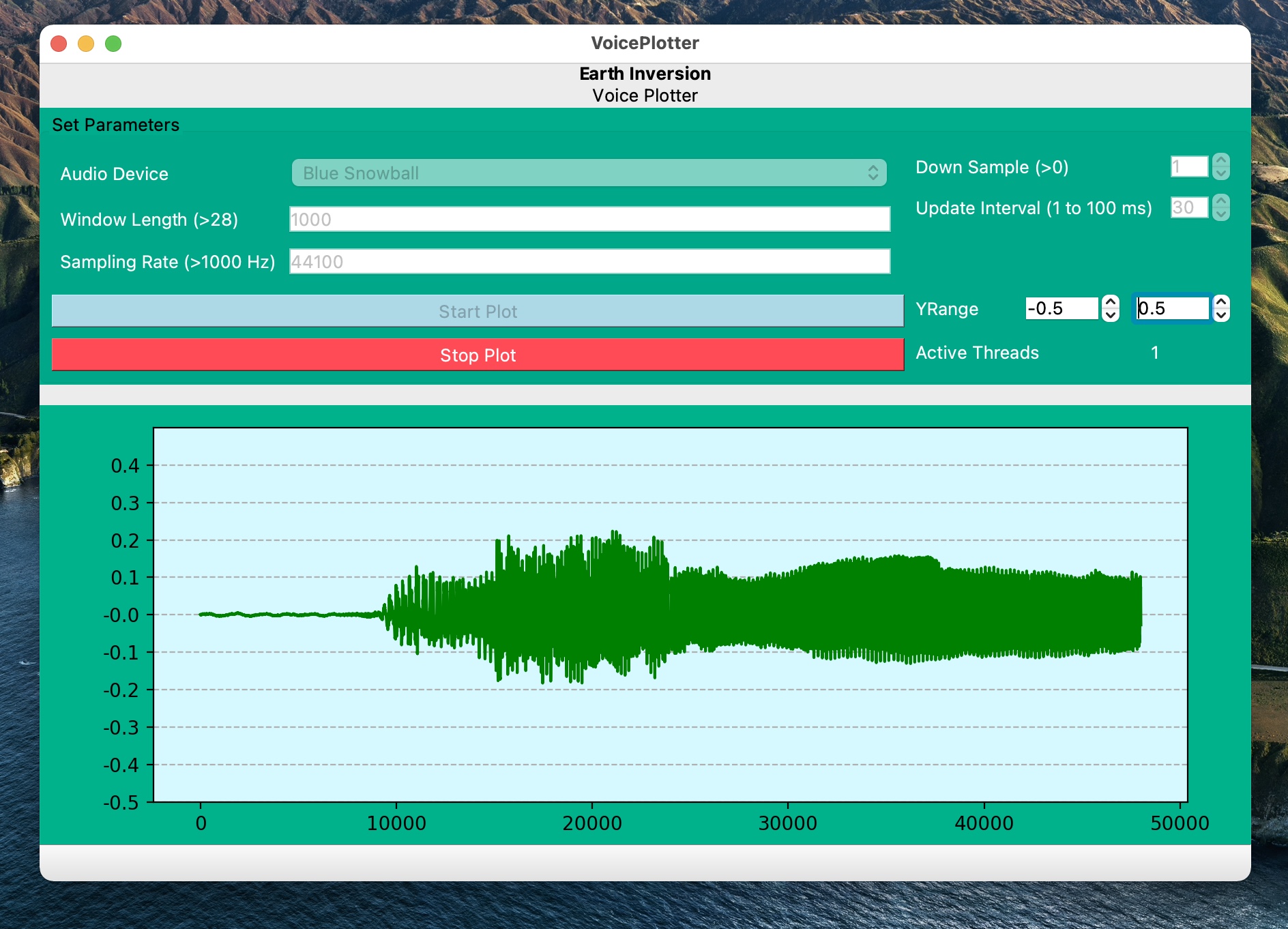
I would like to share with you the Python desktop application for visualizing voice and sound in real time. Currently, this application only take the audio from your system’s microphone and plot it in real time using matlplotlib.
There are several applications one can build upon this code - save the recording, load the recording and play, analyze the recording, remove noise, apply PCA and other analysis algorithms to obtain different informations.
Key idea — separate the fast audio capture from the slow GUI drawing, and bridge them with a queue. Audio arrives continuously in small blocks; if you tried to grab and redraw in the same place, the window would freeze. Instead, a sounddevice.InputStream callback runs on a background thread and just drops each audio block into a thread-safe queue.Queue. Meanwhile a QTimer fires every 30 ms on the GUI thread, pulls whatever’s waiting, rolls it into a fixed-length buffer (np.roll), and redraws the line. The queue is the safe hand-off between the two threads — that’s what keeps a real-time app smooth.
Please note that this code has not been compiled for one click application but it can be easily done for Windows, Mac or Linux using the Pyinstaller.
Install libraries
The application is based on the PyQt5 library and the design is made with the help of QT designer. It uses the sounddevice library to connect with the sound port, and Matplotlib library to plot it. Check sounddevice for details.
Using Anaconda
conda create -n voiceplotter
conda activate voiceplotter
pip install PyQt5 matplotlib sounddevice
python voicePlotter.py
Using venv (in Python 3 only)
python3 -m venv voiceplotter
source voiceplotter/bin/activate
pip install PyQt5 matplotlib sounddevice
python voicePlotter.py
Code description (in short)
See comments:
from PyQt5.QtMultimedia import QAudioDeviceInfo, QAudio
from PyQt5.QtCore import pyqtSlot
from PyQt5 import uic
from PyQt5 import QtCore, QtWidgets
import sounddevice as sd
import numpy as np
import queue
import matplotlib.ticker as ticker
from matplotlib.figure import Figure
from matplotlib.backends.backend_qt5agg import FigureCanvasQTAgg as FigureCanvas
import sys
import os
import matplotlib
from PyQt5.QtGui import QIcon

matplotlib.use("Qt5Agg")


# uses QAudio to obtain all the available devices on the system
input_audio_deviceInfos = QAudioDeviceInfo.availableDevices(QAudio.AudioInput)

# class with all the specification for plotting the matplotlib figure


class MplCanvas(FigureCanvas):
    def __init__(self, parent=None, width=5, height=4, dpi=100):
        fig = Figure(figsize=(width, height), dpi=dpi)
        fig.patch.set_facecolor("#00B28C")
        self.axes = fig.add_subplot(111)

        super(MplCanvas, self).__init__(fig)
        fig.tight_layout()

# The main window that is called to run the application


class MainWindow(QtWidgets.QMainWindow):
    def __init__(self):
        QtWidgets.QMainWindow.__init__(self)
        # import the QT designer created ui for the application
        self.ui = uic.loadUi("main.ui", self)
        self.resize(888, 600)  # reset the size
        self.ui.setWindowTitle('Voice Plotter')
        self.ui.setWindowIcon(QIcon(os.path.join('icons', 'sound.png')))

        self.threadpool = QtCore.QThreadPool()
        self.threadpool.setMaxThreadCount(1)
        self.devices_list = []
        for device in input_audio_deviceInfos:
            self.devices_list.append(device.deviceName())

        # add all the available device name to the combo box
        self.comboBox.addItems(self.devices_list)
        # when the combobox selection changes run the function update_now
        self.comboBox.currentIndexChanged["QString"].connect(self.update_now)
        self.comboBox.setCurrentIndex(0)

        self.canvas = MplCanvas(self, width=5, height=4, dpi=100)
        self.canvas.axes.set_facecolor("#D5F9FF")
        self.ui.gridLayout_4.addWidget(self.canvas, 2, 1, 1, 1) #create gridlayout for matplotlib figure in the canvas
        self.reference_plot = None
        self.q = queue.Queue(maxsize=20)

        # plot specifications
        self.window_length = 1000  # for obtaining sound
        self.downsample = 1  # for obtaining sound
        self.channels = [1]
        self.interval = 30  # update plot every 30/1000 second
        self.yrangeMinVal = -0.5
        self.yrangeMaxVal = 0.5
        # self.all_devices = list(sd.query_devices())
        # print(len(self.all_devices))
        self.device_success = 0
        for self.device in range(len(input_audio_deviceInfos)):
            try:
                device_info = sd.query_devices(self.device, "input")
                if device_info:
                    self.device_success = 1
                    break
            except:
                pass
        if self.device_success:  # run if the device connection is successful
            # print(device_info)
            self.samplerate = device_info["default_samplerate"]
            length = int(self.window_length * self.samplerate /
                         (1000 * self.downsample))
            sd.default.samplerate = self.samplerate
            self.plotdata = np.zeros((length, len(self.channels)))
        else:
          # run if no devices found
            self.disable_buttons()
            self.pushButton_2.setEnabled(False)
            self.pushButton_2.setStyleSheet(
                "QPushButton" "{" "background-color : lightblue;" "}"
            )
            self.devices_list.append("No Devices Found")
            self.comboBox.addItems(self.devices_list)

        self.timer = QtCore.QTimer()
        self.timer.setInterval(self.interval)  # msec
        self.timer.timeout.connect(self.update_plot)
        self.timer.start()
        self.data = [0]
        self.lineEdit.textChanged["QString"].connect(self.update_window_length)
        self.lineEdit_2.textChanged.connect(self.update_sample_rate)
        self.spinBox_downsample.valueChanged.connect(self.update_down_sample)
        self.spinBox_updateInterval.valueChanged.connect(self.update_interval)

        self.doubleSpinBox_yrangemin.valueChanged.connect(
            self.update_yrange_min)  # change the yminvalues when the Yrange is changed
        self.doubleSpinBox_yrangemax.valueChanged.connect(
            self.update_yrange_max)

        self.pushButton.clicked.connect(self.start_worker)
        self.pushButton_2.clicked.connect(self.stop_worker)
        self.worker = None
        self.go_on = False

    def getAudio(self):
        try:
            #Processes some pending events for the calling thread
            #One can call this function occasionally when your program is busy performing a long operation
            QtWidgets.QApplication.processEvents()

            def audio_callback(indata, frames, time, status):
                self.q.put(indata[:: self.downsample, [0]])
            # uses sounddevice to obtain the input stream, check the InputStream for details
            stream = sd.InputStream(
                device=self.device,
                channels=max(self.channels),
                samplerate=self.samplerate,
                callback=audio_callback,
            )
            with stream:

                while True:
                    QtWidgets.QApplication.processEvents()
                    if self.go_on:

                        break
            self.enable_buttons()

        except Exception as e:
            # print("ERROR: ", e)
            self.stop_worker
            pass

    def disable_buttons(self):
        self.lineEdit.setEnabled(False)
        self.lineEdit_2.setEnabled(False)
        self.spinBox_downsample.setEnabled(False)
        self.spinBox_updateInterval.setEnabled(False)
        self.comboBox.setEnabled(False)
        self.pushButton.setEnabled(False)
        self.pushButton.setStyleSheet(
            "QPushButton" "{" "background-color : lightblue;" "}"
        )

        self.canvas.axes.clear()

    def enable_buttons(self):
        self.pushButton.setEnabled(True)
        self.lineEdit.setEnabled(True)
        self.lineEdit_2.setEnabled(True)
        self.spinBox_downsample.setEnabled(True)
        self.spinBox_updateInterval.setEnabled(True)
        self.comboBox.setEnabled(True)

    def start_worker(self):

        self.disable_buttons()

        self.canvas.axes.clear()

        self.go_on = False
        self.worker = Worker(
            self.start_stream,
        )
        self.threadpool.start(self.worker)
        self.reference_plot = None
        self.timer.setInterval(self.interval)  # msec

    def stop_worker(self):

        self.go_on = True
        with self.q.mutex:
            self.q.queue.clear()
        self.pushButton.setStyleSheet(
            "QPushButton"
            "{"
            "background-color : rgb(92, 186, 102);"
            "}"
            "QPushButton"
            "{"
            "color : white;"
            "}"
        )
        self.enable_buttons()

    def start_stream(self):
        self.getAudio()

    def update_now(self, value):
        self.device = self.devices_list.index(value)

    def update_window_length(self, value):
        self.window_length = int(value)
        length = int(self.window_length * self.samplerate /
                     (1000 * self.downsample))
        self.plotdata = np.zeros((length, len(self.channels)))

    def update_sample_rate(self, value):
        try:
            self.samplerate = int(value)
            sd.default.samplerate = self.samplerate
            length = int(
                self.window_length * self.samplerate / (1000 * self.downsample)
            )
            print(self.samplerate, sd.default.samplerate)
            self.plotdata = np.zeros((length, len(self.channels)))
        except:
            pass

    def update_down_sample(self, value):
        self.downsample = int(value)
        length = int(self.window_length * self.samplerate /
                     (1000 * self.downsample))
        self.plotdata = np.zeros((length, len(self.channels)))

    def update_interval(self, value):
        self.interval = int(value)

    def update_yrange_min(self, minval):
        self.yrangeMinVal = float(minval)

    def update_yrange_max(self, maxval):
        self.yrangeMaxVal = float(maxval)

    def update_plot(self):
        try:

            print("ACTIVE THREADS:", self.threadpool.activeThreadCount(), end=" \r")
            self.label_18.setText(f"{self.threadpool.activeThreadCount()}")
            while self.go_on is False:
                QtWidgets.QApplication.processEvents()
                try:
                    self.data = self.q.get_nowait()

                except queue.Empty:
                    break

                shift = len(self.data)
                self.plotdata = np.roll(self.plotdata, -shift, axis=0)
                self.plotdata[-shift:, :] = self.data
                self.ydata = self.plotdata[:]
                self.canvas.axes.set_facecolor("#D5F9FF")

                if self.reference_plot is None:
                    plot_refs = self.canvas.axes.plot(
                        self.ydata, color="green")
                    self.reference_plot = plot_refs[0]
                else:
                    self.reference_plot.set_ydata(self.ydata)

            self.canvas.axes.yaxis.grid(True, linestyle="--")
            start, end = self.canvas.axes.get_ylim()
            self.canvas.axes.yaxis.set_ticks(np.arange(start, end, 0.1))
            self.canvas.axes.yaxis.set_major_formatter(
                ticker.FormatStrFormatter("%0.1f")
            )
            self.canvas.axes.set_ylim(
                ymin=self.yrangeMinVal, ymax=self.yrangeMaxVal)

            self.canvas.draw()
        except Exception as e:
            print("Error:", e)
            pass


class Worker(QtCore.QRunnable):
    def __init__(self, function, *args, **kwargs):
        super(Worker, self).__init__()
        self.function = function
        self.args = args
        self.kwargs = kwargs

    @pyqtSlot()
    def run(self):

        self.function(*self.args, **self.kwargs)


app = QtWidgets.QApplication(sys.argv)

if __name__ == "__main__":
    mainWindow = MainWindow()
    mainWindow.show()
    sys.exit(app.exec_())
Running this on PyQt6? The code is written for PyQt5 (still supported and pip-installable). A few things change if you migrate to PyQt6: app.exec_() → app.exec() (the exec_ alias was removed); the multimedia device enumeration moves — QAudioDeviceInfo.availableDevices(QAudio.AudioInput) is gone, replaced by QMediaDevices.audioInputs(); and the Matplotlib backend import becomes the version-agnostic matplotlib.backends.backend_qtagg. sounddevice (used for the actual audio capture) is unchanged and is the actively-maintained, cross-platform choice over the older PyAudio.
Quick check: Why does the audio audio_callback push data into a queue.Queue instead of updating the plot directly?
Recap
- Two threads, one queue.
sounddevice.InputStream’s callback (audio thread) fills aqueue.Queue; aQTimer(GUI thread) drains it and redraws — never touch Qt widgets from the audio callback. - Fixed-length rolling buffer.
np.rollshifts old samples out and appends the new block, so the plot shows a moving window of recent sound. sounddeviceover PyAudio. It’s the maintained, cross-platform capture library; the GUI is plain PyQt5 + a Matplotlib canvas.- Package it later. PyInstaller turns this into a one-click app for Windows/Mac/Linux.
- PyQt6 needs small edits.
exec(),QMediaDevices, andbackend_qtaggif you move off PyQt5.
Where to go next
sounddevicedocs (InputStream, callbacks): python-sounddevice.readthedocs.io- Packaging with PyInstaller: pyinstaller.org
- The source (GitHub): github.com/earthinversion/voicePlotter
Download codes
Download source code from my GitHub Repo:

Icon Courtesy
Found this article useful?
Loading likes…
Disclaimer of liability
The information provided by the Earth Inversion is made available for educational purposes only.
Whilst we endeavor to keep the information up-to-date and correct. Earth Inversion makes no representations or warranties of any kind, express or implied about the completeness, accuracy, reliability, suitability or availability with respect to the website or the information, products, services or related graphics content on the website for any purpose.
UNDER NO CIRCUMSTANCE SHALL WE HAVE ANY LIABILITY TO YOU FOR ANY LOSS OR DAMAGE OF ANY KIND INCURRED AS A RESULT OF THE USE OF THE SITE OR RELIANCE ON ANY INFORMATION PROVIDED ON THE SITE. ANY RELIANCE YOU PLACED ON SUCH MATERIAL IS THEREFORE STRICTLY AT YOUR OWN RISK.
Leave a comment